UpScaler.tools blog
How to Blur Photo Backgrounds Naturally

Turning a normal photo into one with blurred backgrounds is a controlled edit, not a from-scratch image generation task. You start with a real subject and a real scene, then soften only the background so the subject draws attention. This guide shows how to prepare a blurred background image, use blurred background photography ideas, and blur background online.
What makes a converted blurred background look natural?
A converted blurred background reduces detail behind the main subject while preserving the original scene. In camera, shallow depth of field comes from a wider aperture, a longer focal length, a closer subject, or more distance between the subject and background. The subject remains readable because it sits inside the lens's focus zone.
Digital editing should imitate that relationship. It can soften distant texture while protecting the subject's outline, hair, leaves, product edges, and important text. A blur that spills across the subject looks like a filter. A transition that follows the scene feels more photographic.
The amount matters too. Strong shapes, faces, or readable signs may need more softening, while a quiet wall may need very little. Start with the smallest change that separates the subject from its surroundings. Overdoing it can make fine hair or transparent objects look cut out.
How to prepare a normal photo for background blur
Before editing, decide what the viewer should notice first. Use these checks:
- Choose a clear focal subject with visible contrast against the background.
- Protect important edges, including hair, hands, leaves, and product outlines.
- Look for distractions such as faces, bright signs, repeated patterns, or strong color blocks.
- Match softness to the original light and distance. Equal blur across every area can look artificial.
- Keep the original file. Make the blur on a copy so you can compare the edit with the source.
These checks help with portraits, product listings, profile pictures, food photos, and social posts. If the background contains information people need to read, reduce distraction without destroying context.
How blurred background photography informs the edit
Good blurred background photography is not only about making circles of light. It creates visual hierarchy. The sharp subject carries the story, while the softer background supplies place, color, and mood without competing for attention.
For portraits, keep eyes and facial features crisp. For product photos, keep labels and silhouette edges readable. For profile images, leave enough context to avoid a sticker-like cutout. Review the image at its final display size, not only at 200% zoom. A strong transition up close may feel too harsh in a thumbnail.
Use a blur background tool to convert a normal photo
If you already have a normal photo, the Blur Background tool converts it into a depth-of-field image without a manual background mask. Upload one JPG, PNG, or WebP image up to 10 MB. The automatic editor identifies the foreground subject, softens the background, and returns a JPG result while leaving the original unchanged.
Compare the original and edited image before downloading. Check the subject boundary, hair, thin objects, and nearby text. Each completed edit uses one credit. If processing fails, the reserved credit is returned automatically.
Review the converted image before you publish
Use this short final check:
- Inspect the outline at normal size and at 100% zoom.
- Confirm the face, product label, logo, or other important detail stayed sharp.
- Look for halos, hard edges, or background texture leaking into the subject.
- Check the crop and contrast on the platform where the image will appear.
- Save the edited file separately from the original.
What is a blurred background image?
A blurred background image keeps the main subject clearer than the area behind it. The blur can come from a camera's shallow depth of field or an editing tool used after capture.
Is blurred background photography only for portraits?
No. It also works for products, food, plants, interiors, profile photos, and event images. Preserve the details that explain the subject and soften only distractions.
Can I blur background online from a normal photo?
Yes. Start with a clean JPG, PNG, or WebP image, use the online background blur tool, and review the edge transition before downloading. A clear original usually gives a more convincing conversion.
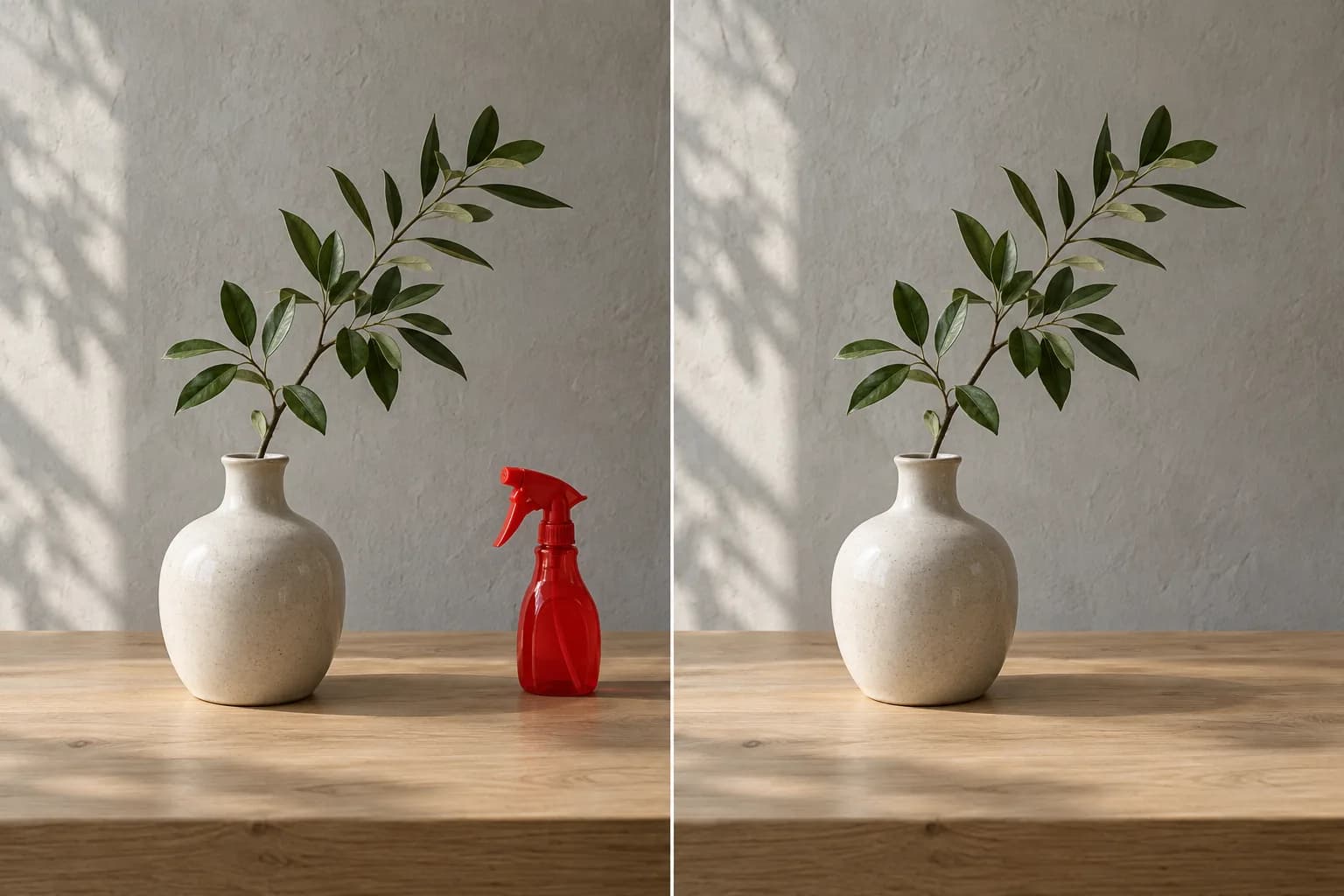
Clear the Background of an Image: 2 Ways
Learn how to clear the background of an image: remove distractions while keeping the scene, or make a transparent cutout. Choose the right method before…
Read article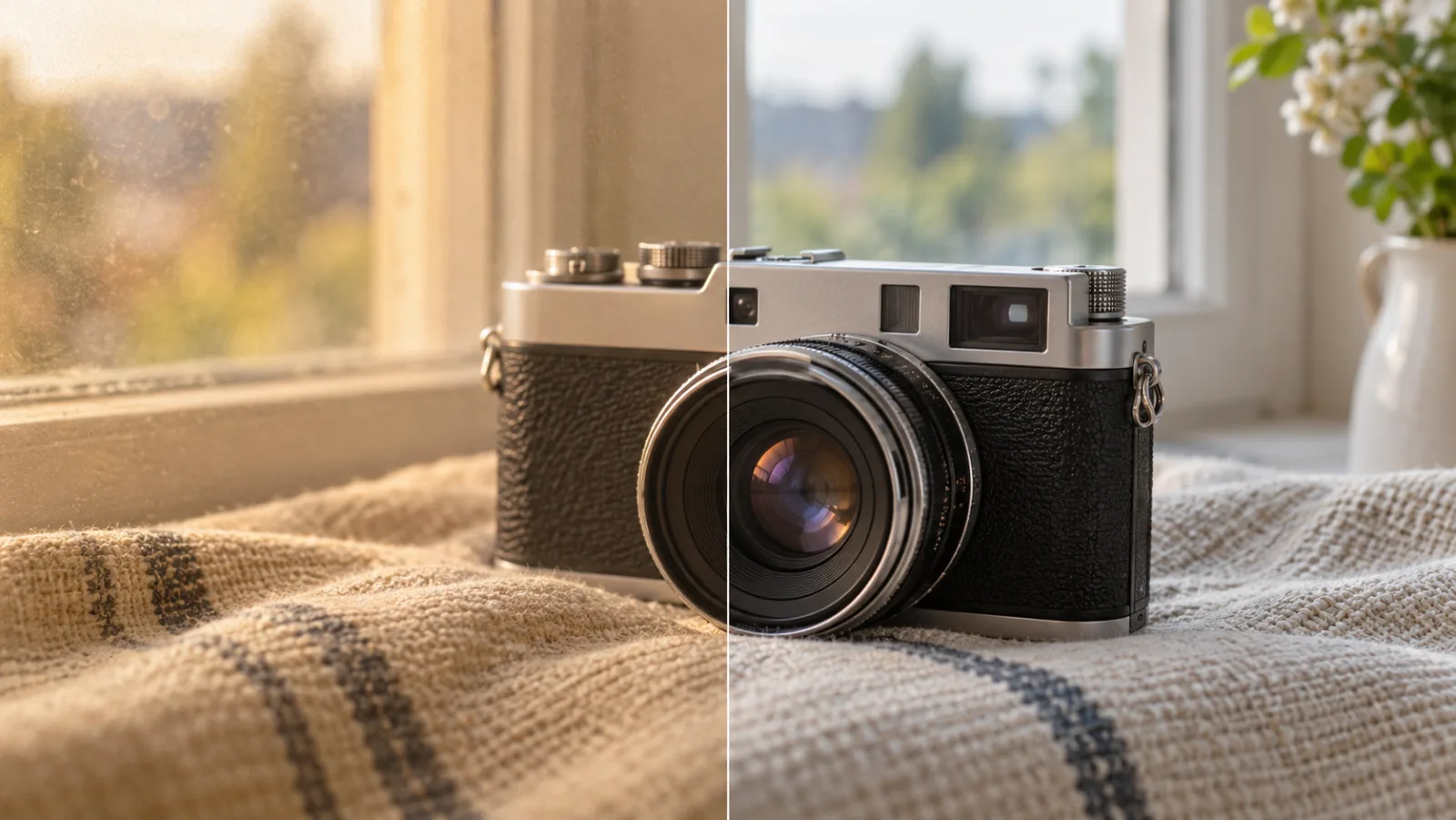
How to Make Image Quality Better with AI
Learn how to make image quality better: choose a cleaner source, correct lighting and noise, then compare an AI-enhanced image before you share or publish it.…
Read article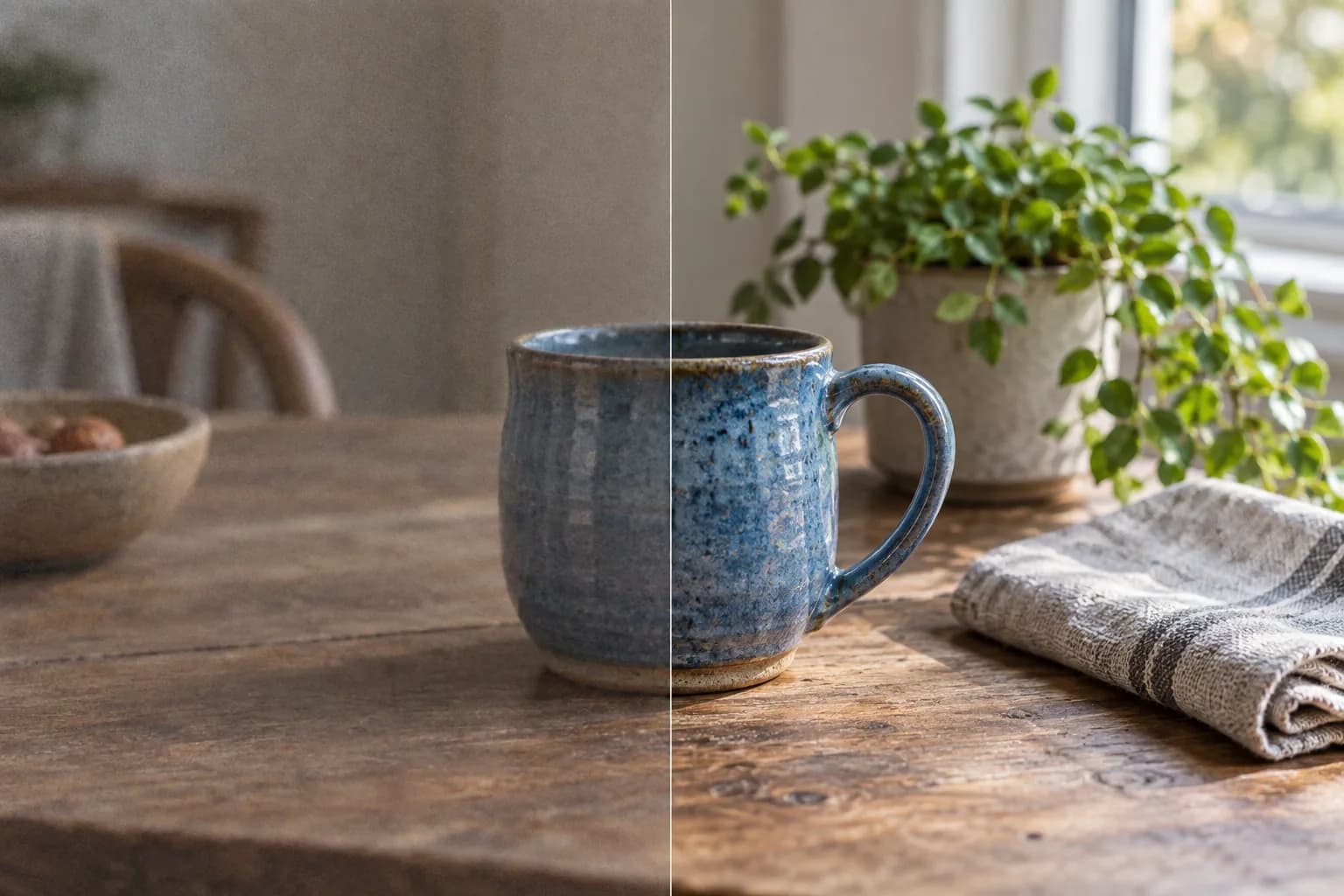
Enhance Photo Quality: Light, Color, Detail
Learn how to enhance photo quality: correct light and color, reduce noise, and refine detail. Compare the original and AI result before downloading your PNG. A…
Read article