UpScaler.tools blog
How to Enhance Blurry Pictures with AI
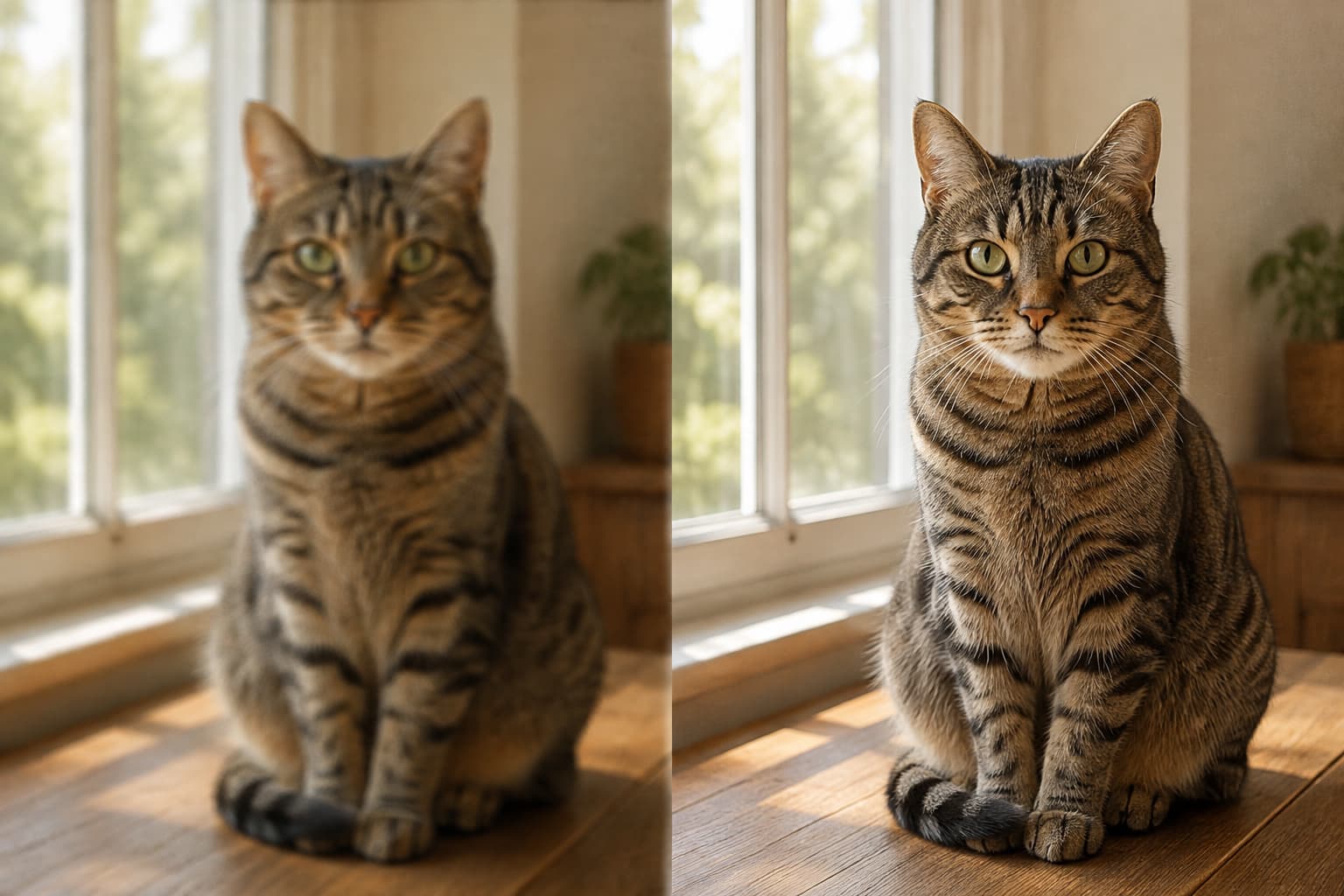
To enhance blurry pictures, first identify whether the softness comes from focus, motion, noise, or compression. Then restore useful detail conservatively and compare the result with the original.
What does it mean to enhance a blurry picture?
Image enhancement improves information that is already visible. It can reduce noise and compression, restore restrained edge contrast, and rebalance light and color. The goal is a clearer picture, not a different scene.
That is different from dragging a sharpness slider, which can create halos around hair, furniture, or text. Enhancement considers noise, exposure, white balance, color, and texture together. Searches for “ai enhance image” often mix this job with upscaling, but enhancement improves perceived quality while upscaling increases pixel dimensions and may predict detail.
Find the kind of blur before you edit
The source problem determines the realistic goal. A focus error makes the subject soft, while motion blur creates directional streaks. Low light adds grain. Repeated JPEG saves or messaging apps create blocky edges and smeared texture.
Mild softness, noise, and compression can often be improved. Severe motion blur or a tiny source has less trustworthy information. No editor can recover every detail the camera never captured, so a steadier shot in better light is still the most accurate fix.
How to enhance blurry pictures without adding artifacts
Use this order for a practical workflow:
- Start with the original. Avoid screenshots and files that have passed through several chat apps. Keep the untouched copy separate.
- Set the target. Decide whether the image is for a thumbnail, listing, presentation, or print. “Higher quality” is not measurable.
- Clean before sharpening. Reduce noise and compression first, because artifacts can look like detail.
- Restore clarity in small steps. Look for readable edges and natural texture, not maximum crispness. Halos, crunchy fur, plastic skin, and bright outlines mean the edit went too far.
- Inspect, then export once. Check faces, text, logos, hands, straight lines, and repeated patterns at 100% zoom. View the final size, then choose PNG for graphics or transparency and JPEG for most photos.
Use an AI enhance image workflow for a controlled first pass
When you want a quick, reviewable edit, the UpScaler.tools AI image enhancer is a useful first pass for mildly blurry pictures. Upload one JPG, PNG, or WebP file up to 10 MB. The original stays unchanged while the editor reduces noise and compression, refines restrained sharpness and micro-contrast, and balances light and color.
The tool is intentionally conservative. Its instruction asks the model to preserve identity, facial features, text, objects, geometry, crop, framing, aspect ratio, and original style, and not to add, remove, move, or invent content. Each completed enhancement uses one credit, and the result is an approximately 1K PNG for a web image, listing, presentation, social post, archive copy, or print draft.
This is an image quality enhancer, not a 4K upscaler. If you need a larger pixel canvas, choose a dedicated upscaling workflow and decide whether reconstructed detail is acceptable.
Review the enhanced picture like a human
Do not judge the result only in a large preview. Zoom in once to check texture and edges, then zoom out to see if the picture still feels natural. Compare the same crop of the original and enhanced versions. Look for changed faces, invented lettering, repeated textures, halos, or color shifts.
For labels, documents, faces, or archival details, treat enhanced pixels as a visual reconstruction, not proof of what the source recorded. Keep the source beside the edited file.
What if the picture is extremely blurry?
Find a better source first: the original camera file, an earlier export, or a higher-quality scan. For motion blur, a new capture may be the only reliable answer. Manual edits can improve presentation, but not restore missing information with certainty.
Can AI enhance a blurry picture?
Yes. An AI image enhancer can improve mild blur, noise, compression, contrast, and color when the subject’s main shapes remain visible. Severe blur and unreadable text remain difficult, so review the result before publishing.
Does enhancing a picture make it high resolution?
No. Enhancement improves perceived quality, while high-resolution upscaling changes pixel dimensions. UpScaler.tools Enhance Image returns an approximately 1K PNG, not a 4K or 16K enlargement.
How do I keep AI enhancement natural?
Use the cleanest original, make one conservative pass, and inspect faces, text, edges, and texture at the final display size. Keep the original and reject invented content.
The dependable answer to how to enhance blurry pictures is measured improvement, not maximum sharpness. Start with the best source you have, use the AI image enhancer when the image still contains useful evidence, and keep the final decision in your own hands.
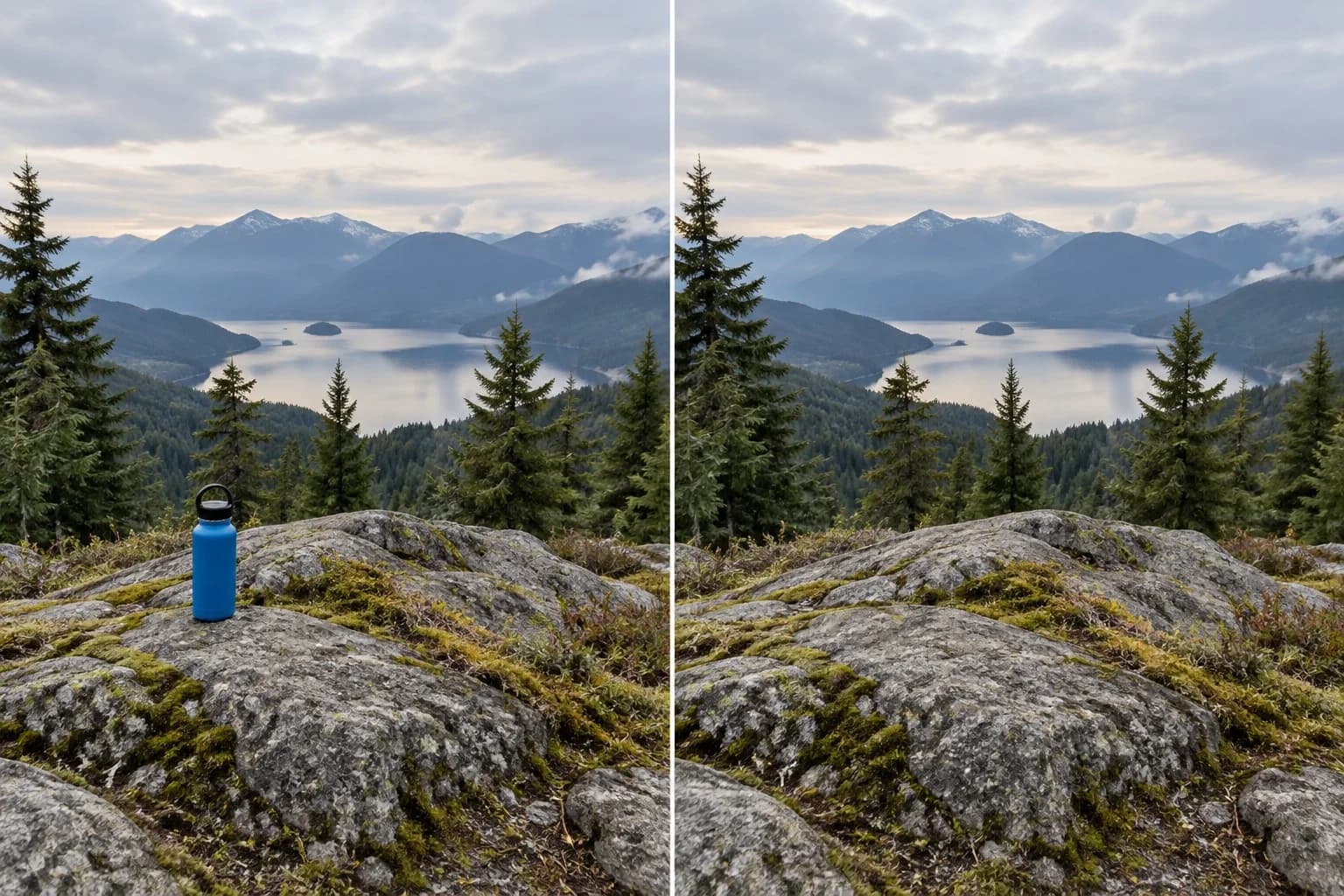
Remove Things from Photos: Erase or Crop?
How to remove things from photos: decide whether to crop, retouch, or rebuild the background, then review the image at its final display size before sharing.…
Read article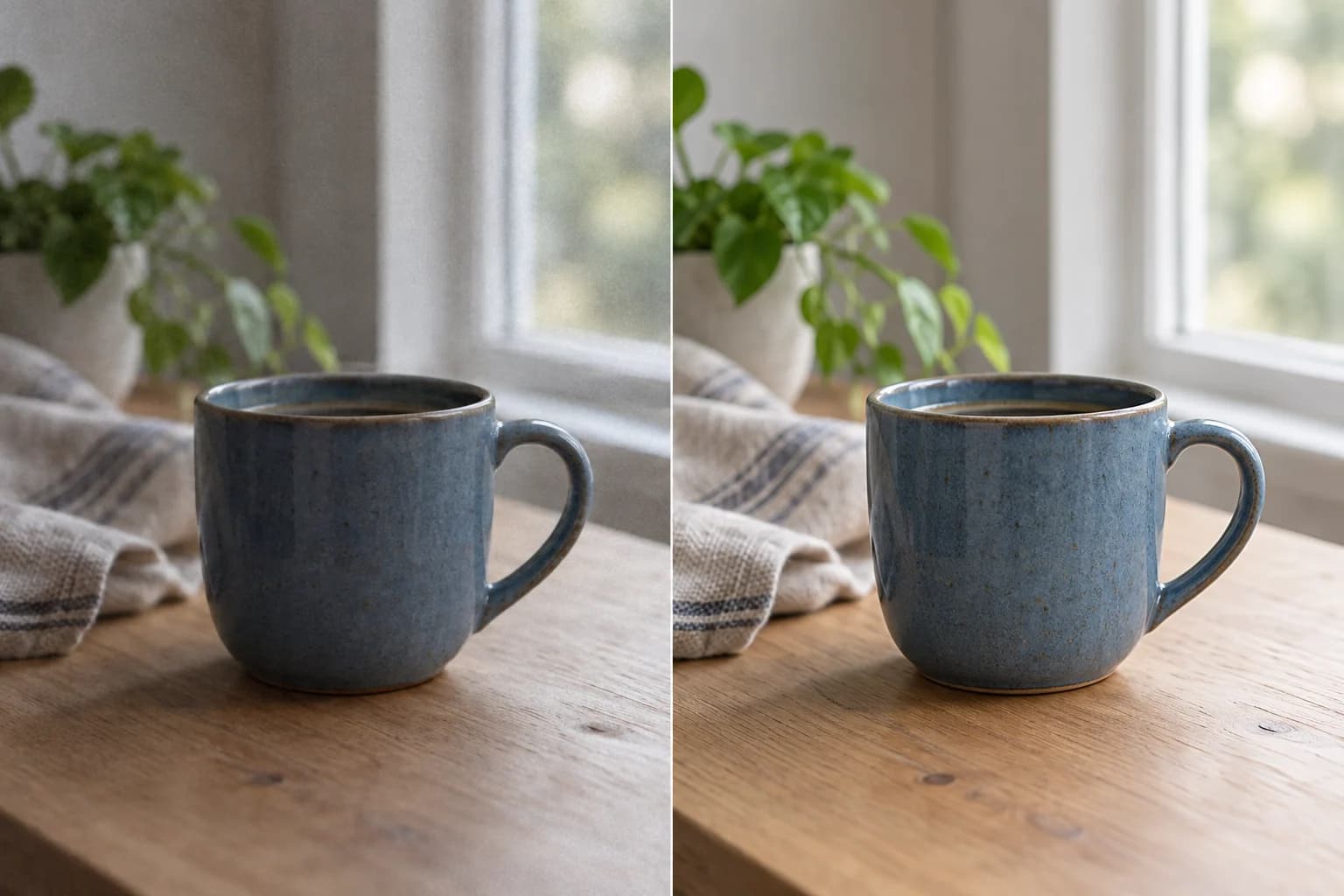
Upgrade Photo Quality: Fix Noise & Color
To upgrade photo quality, start with the visible problem: flat light, noise, compression, or soft detail. Compare the result with the original. A larger file…
Read article
AI Picture Quality Enhancer: A Guide
An AI picture quality enhancer can reduce visible noise and compression artifacts while adjusting sharpness and color. Learn how to inspect the result and…
Read article