BeforeAfter
AI image eraser
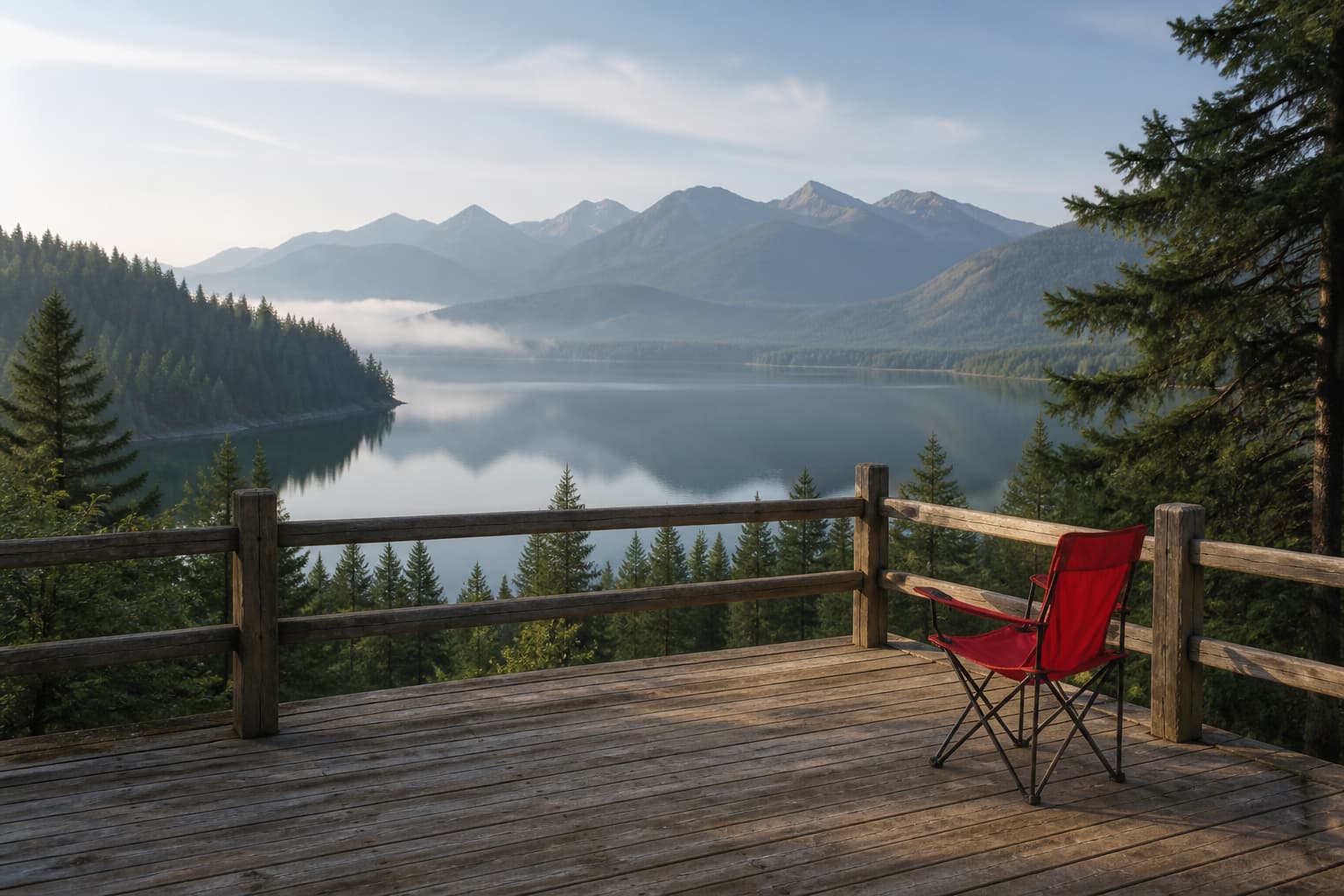
Travel photos without the surprise passerby
Brush over a person, chair, or small distraction, then let the model rebuild the scene around the selected pixels.
Open AI Image EraserAI image eraser
Paint the object, review the rebuilt background, and download a PNG.
Cover a little beyond the edge for a natural blend.
Your image and mask preview will appear here.
AI image eraser
The editor stores every stroke in the original image coordinates. White mask pixels mark the area to remove; black pixels preserve it. A little edge coverage gives the model room to blend texture and light.
AI image eraser
Use a focused mask for one object or text area. The before-and-after examples use the same source image so the change is easy to inspect.
AI image eraser
Brush over a person, chair, or small distraction, then let the model rebuild the scene around the selected pixels.
Open AI Image EraserAI image eraser
Remove a prop from a product shot while keeping the product, light, and surface context ready for a listing or campaign.
Open AI Image EraserAI image eraser
Select text on an image you own or are licensed to edit. The fill follows the surrounding board or wall instead of claiming to remove a third-party watermark.
Open AI Image EraserAI image eraser
A short, reviewable flow from upload to a PNG result.
Choose a JPG, PNG, or WebP file up to 10 MB. The editor normalizes its orientation before making the work image.
Use the brush over the object, person, or owned text. Cover a little beyond the edge, and use Restore if you paint too far.
Submit one mask for one image. The task uses 1 credit and sends the image and black-and-white mask to BRIA Eraser.
Compare the original and result with the slider, then download the fixed PNG. Failed processing returns the reserved credit.
Questions, answered
Clear answers about masks, files, credits, privacy, and how to evaluate an AI photo object remover.
Painted erase strokes become white pixels in a PNG mask, while black pixels tell BRIA Eraser to keep the original image. Restore strokes paint black over a mistaken area. The mask is the same pixel size as the normalized work image.
Yes. Paint over the object or person and include a small edge around it. The model reconstructs the background from nearby visual context, but inspect hair, reflections, and repeating textures before publishing.
You can remove text from images AI-style when you own the image or have permission to edit it. Select the lettering and its edge, then review the filled background. Do not use this workflow to remove a third-party watermark or copyright notice.
These are common names for the same focused workflow: upload one image, paint a mask, let the model reconstruct the selected area, and review the PNG before saving.
The best AI photo object remover depends on mask control, edge quality, output format, review tools, privacy terms, and predictable pricing. Compare those criteria instead of relying on an unverified ‘best’ claim.
A useful AI remove object workflow keeps the original pixels safe, lets you correct the mask, shows a before-and-after review, and explains its file and credit limits. This page follows that checklist.
Upload one JPG, PNG, or WebP up to 10 MB. The generated mask is a PNG up to 10 MB, and the result is always a PNG. Batch editing, zoom, and pan are not included.
One submitted image and mask use 1 credit. A repeated request with the same job ID is idempotent, and a failed provider task returns the reserved credit.
The image and mask are uploaded to the task storage only for processing and result delivery. Use images you have the right to edit, review the result, and follow the site privacy policy for retention details.