UpScaler.tools blog
how to remove things from photos
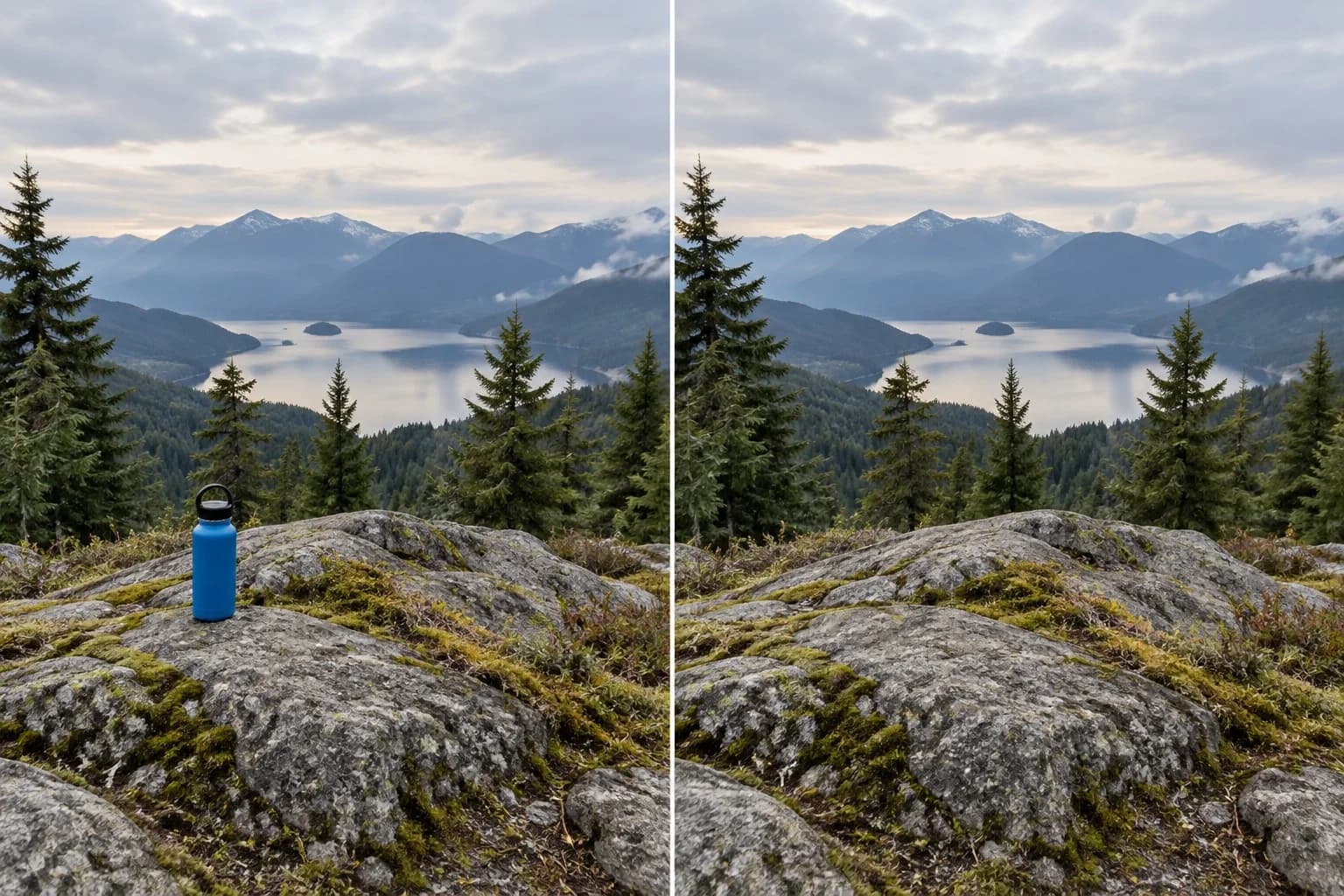
How to remove things from photos: decide whether to crop, retouch, or rebuild the background, then review the image at its final display size before sharing.
Choose based on the image's purpose. A travel photo may accept a plausible patch; product, repair, and news images may need visible details left untouched.
The cover is an AI-generated illustration of an object-removal edit, not an actual UpScaler.tools processing result.
Object removal replaces pixels, not hidden facts
Removing an item changes the selected part of a photo. A healing or cloning tool borrows nearby pixels; generative fill estimates a continuation. Neither method can confirm what was behind an object. Treat a convincing reconstruction as a visual edit, not recovered evidence.
Choose the workflow by the photo's purpose
Personal and travel photos. Crop an edge distraction if the frame still works. For an object inside the photo, check that enough background remains to guide a plausible fill. A second shot may show the real scene. If the distraction is a person, see our guide to removing people from photos.
Product listings. Preserve the product's shape, label, finish, and condition. Cleaning lint from an empty backdrop is cosmetic; erasing a scratch changes the product. Use another angle if the object hides an identifying feature.
News, repair, and event records. Keep the original and save an edited copy. Do not remove details that change what the image documents.
Prints and photo sets. Start from the full-resolution source. Check the final crop and dimensions for print. Compare lighting and texture across a photo series. Apply the same cleanup standard across frames, so an object does not vanish in one image without a clear reason.
Review the complete photo in three passes
Review in three passes. At normal size, check composition and balance. At full size, check texture, light, and edges. Reopen the export and confirm its crop, dimensions, and color fit the intended use.
Cloning gives you control over a precise edge. Adobe's Content-Aware Fill guide explains how to adjust its sampling area.
When an AI object eraser is a good fit
When the background is visible and the hidden detail is not important to the photo's meaning, the AI Image Eraser can replace a selected area from nearby scene context. Keep the untouched source and review the result before publishing; the generated fill is an estimate.
FAQ
Will an AI tool show what was behind an object?
No. It estimates a plausible fill from nearby pixels. Use another photo when the hidden scene must be accurate.
Should I remove scratches from a product photo?
Keep wear and damage that affect the item's condition. Remove only incidental background distractions.
Does cropping reduce photo quality?
Cropping keeps the remaining pixels unchanged, but it reduces image dimensions. Confirm the crop still meets the print or display size.
What should I check before sharing an edited photo?
Compare the composition, repair, and export with the original. Keep the source for product, event, or repair records.

How to Turn Photos into Blurred Backgrounds
Turning a normal photo into one with blurred backgrounds is a controlled edit, not a from-scratch image generation task. You start with a real subject and a…
Read article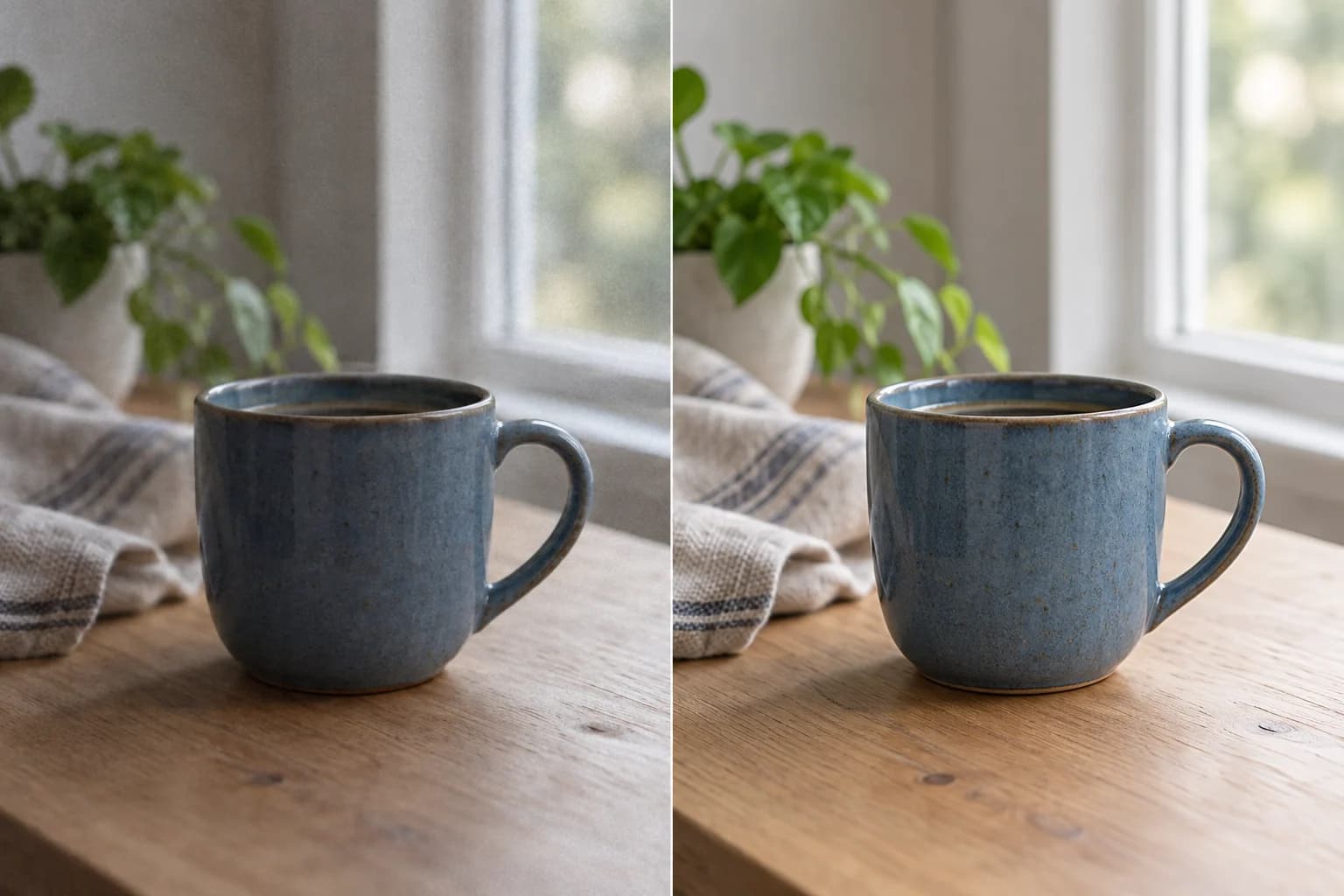
upgrade photo quality
To upgrade photo quality, start with the visible problem: flat light, noise, compression, or soft detail. Compare the result with the original. A larger file…
Read article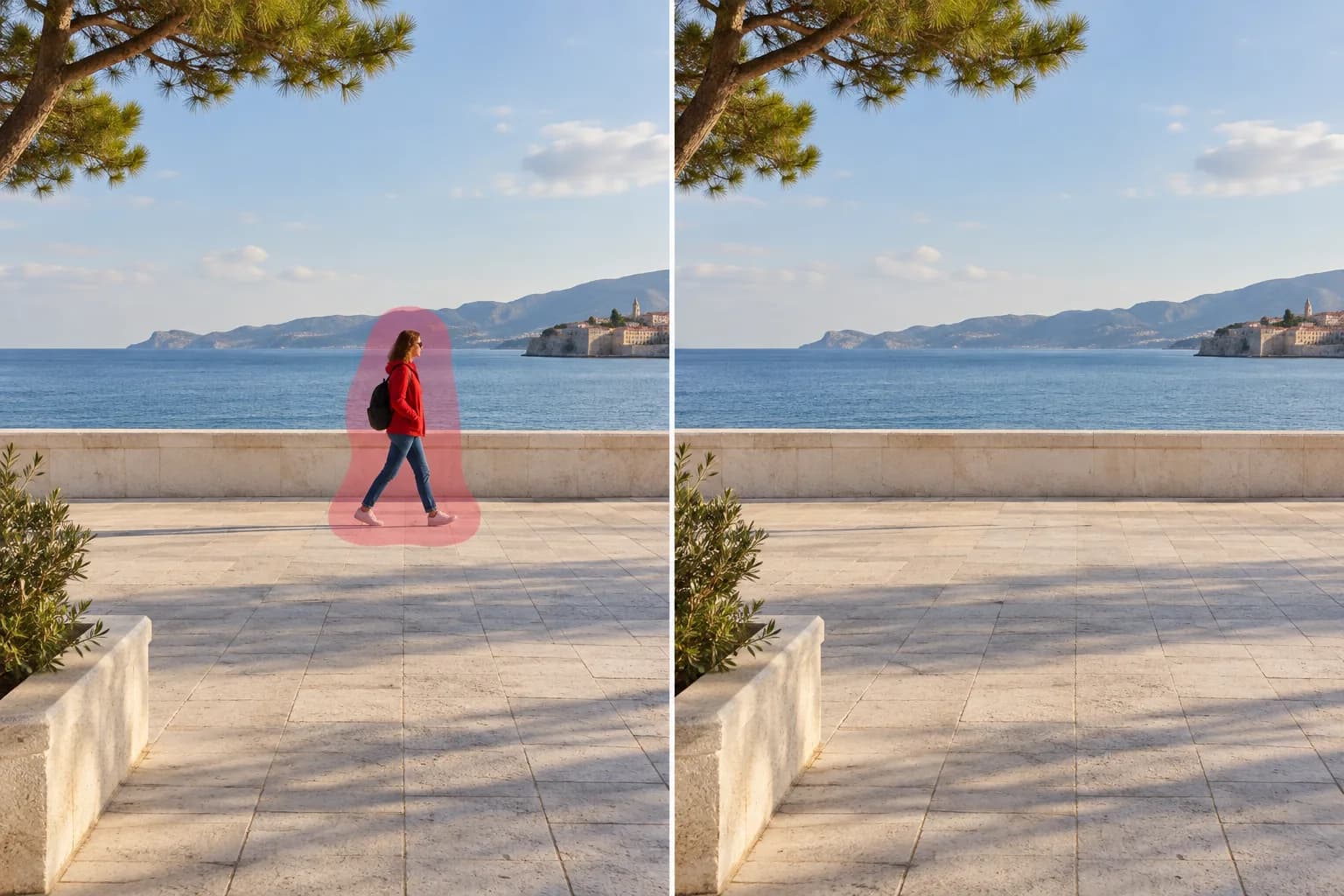
how to remove people from photos
Learn how to remove people from photos: select the unwanted person, fill the area with an AI image eraser, and check the background before saving. For travel…
Read article