UpScaler.tools blog
Remove People from Photos with an AI Eraser
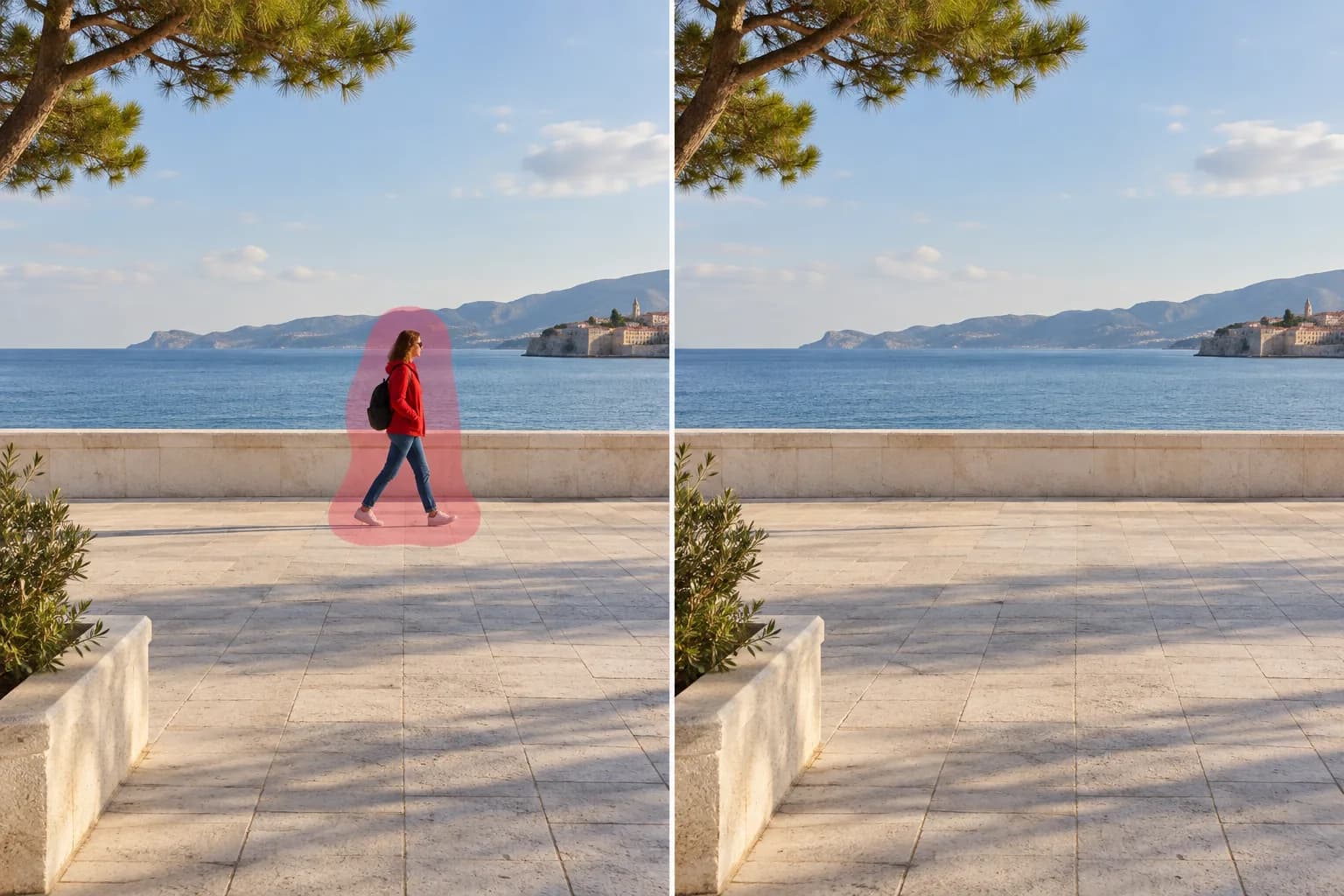
Learn how to remove people from photos: select the unwanted person, fill the area with an AI image eraser, and check the background before saving.
For travel pictures, family snapshots, and social posts, a careful selection matters more than a large brush. Keep the original file so you can compare the edit and start again if the background looks wrong.
The cover is an AI-generated concept illustration, not an actual UpScaler.tools processing result.
What is an AI image eraser?
An AI image eraser removes content inside a selected area and reconstructs that area using the surrounding scene. The selection is called a mask. For people removal, it should cover the unwanted person while leaving the subject you want to keep outside the mask.
The replacement is an estimate of a plausible background. It does not reveal what was actually behind the person. A blank wall gives the model relatively simple context; a covered face or detailed shop sign leaves information that cannot be reliably recovered.
Prepare a photo for natural people removal
Start with the clearest original available. Screenshots and repeatedly compressed copies can make edges harder to judge. Identify the person to remove, then follow their outline from hair to shoes. Include accessories that belong to them, such as a bag or an umbrella.
Look beyond the body. A shadow on the pavement or a reflection in a window may still reveal the person after removal. Include those traces when they are separate from details you need to preserve. Avoid covering another person's feet or shadow just to make the selection easier.
Leave a small margin around the unwanted person's edge. A selection that stops inside clothing can leave a colored outline. An unnecessarily wide selection gives the model more background to rebuild and can disturb useful detail.
When should you crop instead of erase?
Crop when the person is near the edge and the tighter frame still works. Cropping avoids generating replacement pixels, but it changes your composition and reduces the remaining image dimensions.
Use erasing when you need to preserve the full frame and there is enough visible background to guide the fill. If someone overlaps the main subject, consider another photograph. Reconstructing a hidden hand or face is a different problem from filling an empty patch of sand.
How to remove people with UpScaler.tools
The AI image eraser uses a brush selection rather than automatically choosing people for you. It accepts one JPG, PNG, or WebP up to 10 MB and returns a PNG. Sign in before submitting an edit.
- Choose an image. Upload your photo and check that it is the version you intend to edit.
- Paint to remove. Adjust Brush size and cover the person with a small margin. Include any unwanted shadow or reflection.
- Correct the mask. Use Restore where the brush reaches something you want to keep. Undo, Redo, and Clear mask help correct selection mistakes before processing.
- Erase selected area. Submit the mask. Each processing task uses 1 credit; failed processing returns the reserved credit.
- Compare and save. Move the comparison slider to inspect the original and result, then select Download PNG.
Check the background before sharing
Follow straight lines through the repaired area, especially railings, tiles, and horizons. Look for repeated patches, blurry texture, remaining clothing edges, or a shadow with no person attached. Check nearby people too, particularly hands and hair along the selection boundary.
The editor has no zoom or pan controls. After downloading, inspect the PNG at full size in an image viewer. Save it separately from the original. If the fill looks wrong, return to the original and adjust the selection before another attempt.
Frequently asked questions
Can I remove several people from one photo?
You can paint multiple areas in one mask. Keep selections focused and review each filled area. The tool processes one image at a time, with no batch editing.
Is removing people from photos free?
UpScaler.tools charges 1 credit per erase task. Check your account balance and the pricing page before processing.
Will an AI photo eraser preserve every detail?
No result is guaranteed. Dense crowds, overlapping subjects, reflections, and repeating patterns need close inspection. Start with a clearly separated passerby in the people removal tool.
How to Make Image Quality Better with AI
Learn how to make image quality better: choose a cleaner source, correct lighting and noise, then compare an AI-enhanced image before you share or publish it.…
Read article
Remove Something from a Picture: Edge Tips
Learn how to remove something from a picture: choose cropping, healing, or AI erasing, then check edges, shadows, and texture before saving your edited photo.…
Read article
Remove Things from Photos: Erase or Crop?
How to remove things from photos: decide whether to crop, retouch, or rebuild the background, then review the image at its final display size before sharing.…
Read article