UpScaler.tools blog
Image Quality Increaser: Keep Details Real
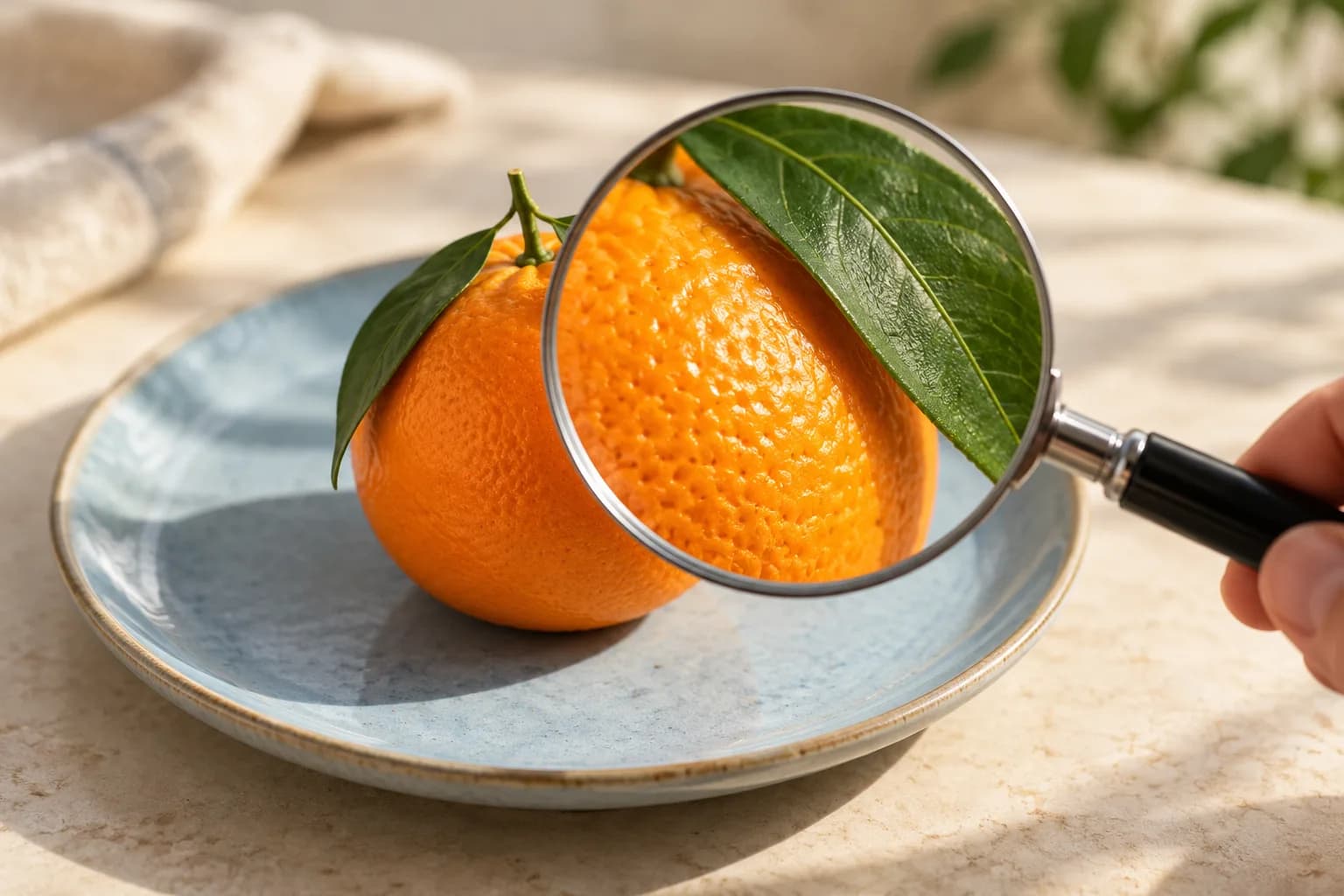
An image quality increaser can reduce noise and improve image clarity. Learn to inspect real detail, use AI enhancement, and download a natural-looking photo.
A sharper product photo is useful only if it still shows the product accurately. For marketplace sellers and anyone preparing photos for the web, the goal is cleaner presentation without changed colors, invented lettering, or artificial texture.
What does an image quality increaser do?
An image quality increaser improves the appearance of a photo through adjustments such as noise reduction, sharpening, exposure correction, and color balance. Some tools also enlarge images. These are separate operations: a cleaner image does not necessarily contain more pixels, and a larger image does not guarantee more accurate detail.
Start by identifying the defect. Grain in shadows calls for noise reduction. A yellow cast calls for white-balance correction. Mild softness may benefit from restrained sharpening. Strong sharpening applied to all three problems can make grain and edge halos more visible.
Decide whether you need enhancement or enlargement
Check your destination before choosing a tool. A photo that looks soft only when stretched across a large website banner may need more pixels or a smaller display area. A correctly sized photo with muddy shadows needs a different correction.
Adobe's image size and resampling guide explains that resampling changes pixel dimensions. Changing a print-resolution setting alone does not add pixels. Increasing a DPI number therefore does not repair a web photo.
Keep your original camera file or highest-quality export. Repeatedly saving a JPEG can introduce additional compression damage. Enhancement should start from the cleanest available source, rather than a screenshot downloaded from a messaging thread.
Check whether sharper details remain believable
Compare the same areas before and after editing at 100% zoom. Read labels letter by letter. Check whether fabric retains its weave, skin keeps natural texture, and object edges stay in the same position. Then inspect the image at its intended display size.
For a marketplace listing, color and shape matter more than an impressive preview. Reject a result that changes a blue shirt to purple or smooths away a scratch buyers should see. Severe blur can leave insufficient evidence for accurate reconstruction, even when generated detail looks convincing.
Use an ai enhance image workflow on UpScaler.tools
The UpScaler.tools AI image enhancer offers an ai enhance image workflow for noise, compression artifacts, mild softness, and unbalanced light or color. Its instruction asks for conservative changes that preserve faces, text, objects, and composition. These are processing goals, so review the output rather than assuming preservation is guaranteed.
- Upload one JPG, PNG, or WebP image up to 10 MB.
- Sign in and start processing. Each completed enhancement uses one credit; failed processing returns the reserved credit automatically.
- Drag the comparison preview to inspect important details against the original.
- Download the approximately 1K PNG and keep it alongside your source.
This output is intended for quality review, rather than high-resolution enlargement. Choose the separate image upscaler when larger pixel dimensions are your main requirement.
The cover is an AI-generated illustration, not an actual UpScaler.tools processing result.
FAQ: image quality increaser
Can an image quality increaser fix every blurry photo?
No. Mild softness may improve, but severe motion blur or missed focus can remove information that AI cannot reliably reconstruct.
Does PNG output mean higher resolution?
No. PNG describes the file format. Check the downloaded pixel dimensions separately before using the image in a large layout.
Should I enhance the same image repeatedly?
Compare one pass first. Repeated processing can exaggerate texture or alter details. Return to the original if the result looks artificial.
Open Enhance Image with one photo and check its most important detail before downloading.
Written by upscaler.tools.
Upgrade Photo Quality: Fix Noise & Color
To upgrade photo quality, start with the visible problem: flat light, noise, compression, or soft detail. Compare the result with the original. A larger file…
Read article
Improve Photo Quality: Find the Right Fix
To improve photo quality, identify noise, blur, or poor light first. Learn when to use AI enhancement, compare fine detail, and save a natural-looking result.…
Read article
Remove Something from a Picture: Edge Tips
Learn how to remove something from a picture: choose cropping, healing, or AI erasing, then check edges, shadows, and texture before saving your edited photo.…
Read article